Getting a “mail certificate name mismatch” / “cannot verify server identity” error?

This error usually occurs when a mail client is using a secure connection to the mail server under a custom hostname.

For example, this could occur where you have imap.yourdomain.com pointing to imap.stackmail.com. This allows you to make a secure IMAP connection, but the SSL certificate installed on our mail servers uses the ‘*.stackmail.com’ hostname – and not ‘yourdomain.com’.

It’s nothing to worry about, the certificate for ‘*.stackmail.com’ is expected so you can trust the certificate with the knowledge that the connection will remain encrypted. Once the certificate is trusted you should not receive any further warnings, unless the certificate changes.

To avoid the warning altogether, you could change the mail client to use the stackmail.com hostnames. These are: imap.stackmail.com, pop.stackmail.com or smtp.stackmail.com for IMAP, POP or SMTP respectively.

How to set up an IMAP account in Mac Mail

Step 1

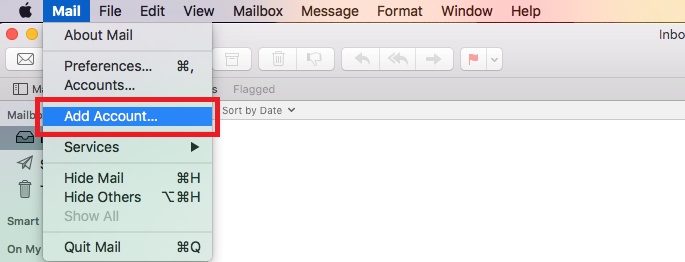
Once you have opened Mac Mail, click on Mail > Add Account

Step 2

Next select the option for Other Mail Account, and click Continue.

Step 3

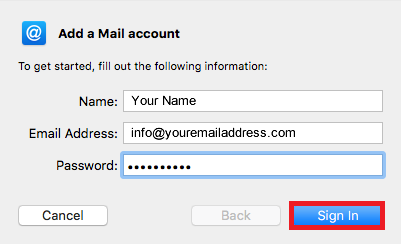
Enter a Display Name, your Email Address and your Email Password, and click Sign in.

Step 4

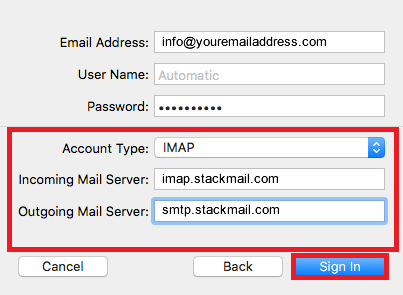
You will now need to enter the following server information, and click Sign in.

Step 5

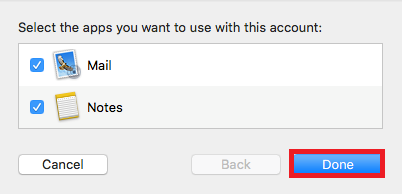
You can now click Done to complete the setup.

Additional Notes:

There are various methods of connecting to mailboxes on our platform. We always recommend IMAP as that helps keep messages in sync between various devices and our webmail system.

This is our recommended configuration for Mac Mail.

Incoming Server 

Server Name: imap.stackmail.com
Username: Your e-mail address
Port: 993
Connection security: SSL/TLS
Authentication method: ‘Normal password’

Outgoing Server (SMTP)

Server Name: smtp.stackmail.com
Username: Your e-mail address
Port: 587
Connection Security: STARTTLS
Authentication method: ‘Normal password’

If you choose to use domain-branded server names, such as mail.your-domain or imap.your-domain, the secure connection may throw a certificate warning due to a common name mismatch. This can be safely trusted and your connection will remain secure.

What is QuantaTec’s Webmail Login URL?

If you need to log in to Webmail – QuantaTec’s free webmail is available with all hosting packages – the URL you need is:

https://webmail.quantatec.cloud/

How do I setup mailbox in Outlook (New) with IMAP Email Account?
https://www.quantatec.ltd/support/how-do-i-setup-mailbox-in-outlook-new-with-imap-email-account/

If you want to set up your email account on Outlook Desktop:
https://www.quantatec.ltd/support/how-do-i-setup-mailbox-in-outlook/

If you want to set up your email account through Outlook for Mobile ( App )?
https://www.quantatec.ltd/support/how-do-i-connect-to-my-mailbox-through-outlook-for-mobile/

If you want to set up your email account on Windows Mail ( 8, 10 & 11 ):
https://www.quantatec.ltd/support/how-to-set-up-an-imap-account-in-windows-mail/

If you want to set up your email account on Thunderbird Mail client:
https://www.quantatec.ltd/support/how-do-i-setup-mailbox-in-thunderbird-mail-client/

If you want to set up your email account on Android phones and tablets:
https://www.quantatec.ltd/support/how-do-i-set-up-email-on-my-android-device/

If you want to set up your email account on iPhone:
https://www.quantatec.ltd/support/how-do-i-set-up-email-on-my-iphone/

If you want to set up your email account on Mac Mail:
https://www.quantatec.ltd/support/how-to-set-up-an-imap-account-in-mac-mail/


Note:

We would strongly advise against using POP if you wish to retain copies of your emails on the server for access via webmail. This is particularly important in situations where access to a device is lost or when an employee leaves the company. POP downloads messages to a single device and, by default, removes them from the server. As a result, the only remaining copy of the email exists on the device configured with POP. This can lead to a lack of visibility for other authorised users and may create difficulties in reviewing previously received or sent correspondence.

IMAP is generally the recommended configuration. It synchronises emails across devices while keeping them stored on the server, ensuring that messages remain accessible via webmail and to other authorised users when required. This approach provides greater flexibility and continuity.

What are my email sending limits?

Email Account Limits

The following limits apply to all messages sent via authenticated SMTP. This will primarily be used for email sent via a mail client, but can also include mail sent via your website if configured to send via SMTP.

We impose a limit of 8,000 messages per e-mail address per 24 hours.

The following limits also apply:

  • No more than 10,000 recipients per day.
  • No more than 2,000 unique recipients per day.
  • A single email may not be sent to more than 100 individual addresses.

As an example, if you were to send 100 emails to 5 different e-mail addresses within a 24 hour period. We would count 100 messages, 500 total recipients and 5 unique recipients.

Web Server Limits

A limit of 500 messages per day is imposed on all e-mail sent by our web servers. E-mails sent by the web servers should be no larger than 5MB in size. This applies to all messages sent via the PHP mail() function.

Email Size Limits

Our mail system accepts attachments up to 32MB in size, and the maximum message size in our network is 50MB.

Autoresponders

An autoresponder only sends once every 8 hours per sender

Zero Tolerance Spam Policy

We take a zero-tolerance stance against the sending of unsolicited email, bulk emailing and spam.

Please note: The distributed nature of our network means email can leave through different servers at different times. As a result, you may see periods when you can send a greater number of messages than the limits mentioned above. However, this behaviour should not be relied upon and is not supported.

New Mailbox Limit

When a new mailbox has been set up, the sending is limited to 50 per day for 7 days. This is actually an abuse rule to prevent new mailboxes being set up and used immediately to send out high volumes of spam emails. To preserve the platforms reputation and protect mail being sent from being spoofed as spam by third parties this rule was put place to protect that status.

What are the recommended Thunderbird Mail client settings?

There are various methods of connecting to mailboxes on our platform. We always recommend IMAP as that helps keep messages in sync between various devices and our webmail system. This is our recommended configuration for Thunderbird mail clients.

Incoming Server (“Account Settings” > “Server Settings”)

Server Name: imap.stackmail.com
Username: Your e-mail address
Port: 993
Connection security: SSL/TLS
Authentication method: ‘Normal password’

Outgoing Server (SMTP)

Server Name: smtp.stackmail.com
Port: 587
Connection Security: STARTTLS
Authentication method: ‘Normal password’
Username: Your e-mail address

If you choose to use domain-branded server names, such as mail.your-domain or imap.your-domain, the secure connection may throw a certificate warning due to a common name mismatch. This can be safely trusted and your connection will remain secure.

What are MX records?

MX stands for ‘mail exchanger’.

It tells a ‘sending’ mail server how to find the ‘receiving’ mail server, given in order of priority, where the lower numbers are given higher priority. The MX records for QuantaTec are ‘mx.stackmail.com.’ .

What is SMTP?

SMTP or Simple Mail Transfer Protocol is a TCP/IP used to send and receive email. The majority of email systems use SMTP to send messages from one server to another. Messages can then be retrieved using an email client using an email download protocol such as IMAP or POP3.

SMTP also delivers email from a mail client to a mail server, thus the need to specify both an incoming and outgoing mail server when setting your email client.

SMTP uses ports 25 or 587 as some ISPs will block port 25.

How can I change my mailbox password?

Changing passwords for any mailbox can be done through the Hosting control panel.

  1. Log in to the Hosting Control Panel and
  2. Choose ‘Email Accounts’ under ‘Email’.
  3. Simply locate your mailbox and enter a new password and click “Update”. Your new password will have been successfully saved.

Note: You will not be able to recover your old password for the mailbox. We do this to increase your security.

Getting a “mail certificate name mismatch” / “cannot verify server identity” error?

This error usually occurs when a mail client is using a secure connection to the mail server under a custom hostname.

For example, this could occur where you have imap.yourdomain.com pointing to imap.stackmail.com. This allows you to make a secure IMAP connection, but the SSL certificate installed on our mail servers uses the ‘*.stackmail.com’ hostname – and not ‘yourdomain.com’.

It’s nothing to worry about, the certificate for ‘*.stackmail.com’ is expected so you can trust the certificate with the knowledge that the connection will remain encrypted. Once the certificate is trusted you should not receive any further warnings, unless the certificate changes.

To avoid the warning altogether, you could change the mail client to use the stackmail.com hostnames. These are: imap.stackmail.com, pop.stackmail.com or smtp.stackmail.com for IMAP, POP or SMTP respectively.

How do I migrate emails?

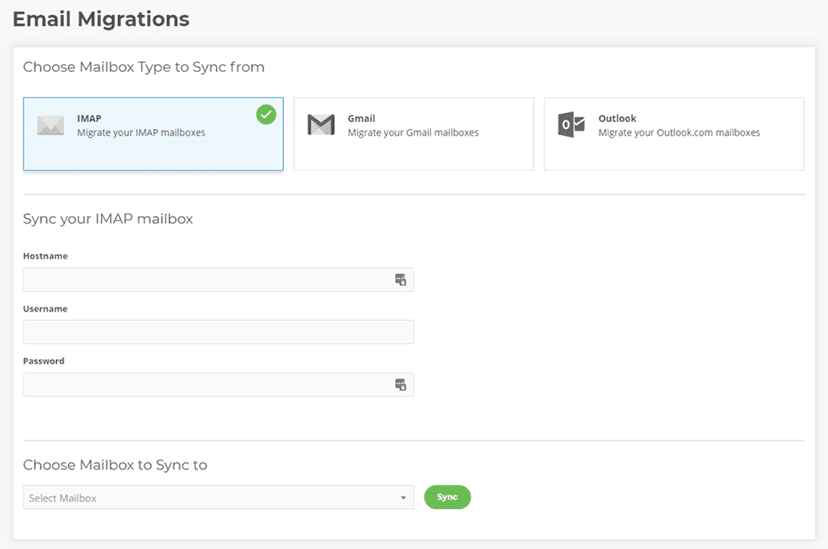
To migrate your emails and mailboxes to QuantaTec, you can use our in-house Email Migrations tool. This will let you migrate your IMAP mailboxes, your Gmail mailboxes and your Outlook mailboxes into QuantaTec.

To do this:

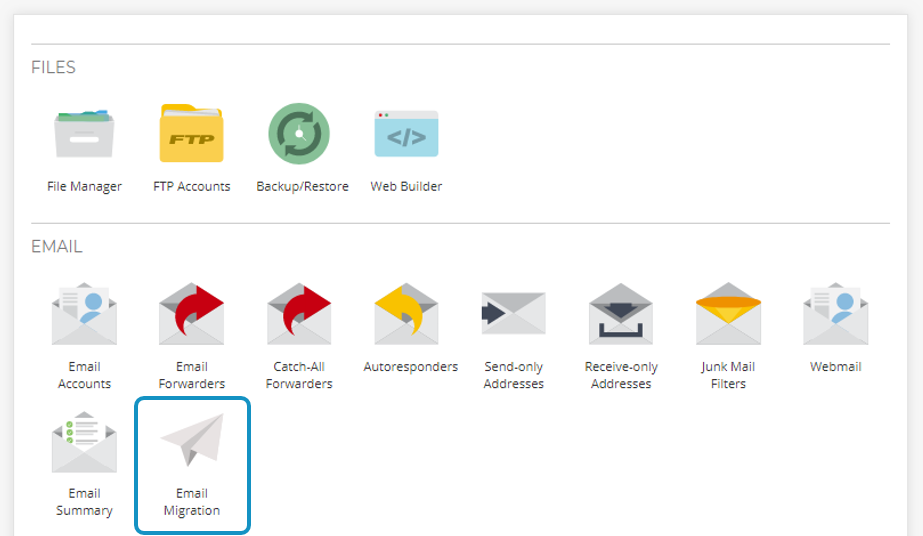
  • Select the Email Migrations tool that is within the emails section of your website hosting control panel.

  • Enter the relevant credentials and then select ‘Sync‘.
    • Hostname – This will be the hostname of the mailserver that you are syncing your emails from. If you’re not sure what this is then it may be worth asking your previous hosting provider what this is.
    • Username – This will be the mailbox that you are syncing.
    • Password – This will be the password of the mailbox at your previous host and of the newly created mailbox at QuantaTec. Please note: you’ll need to have set up the mailboxes within QuantaTec first using the same password as currently used by the mailbox.

Please note: you’ll need to have set up the mailboxes within QuantaTec first using the same password as currently used by the mailbox.

If the sync fails to start, this is likely due to the credentials not being correct. You should confirm that the password you have used is correct and that the hostname is also correct before requesting support.

Frequently Asked Questions

Can I use the email migration tool more than once for the same mailbox?

Yes, you can use it as many times as you want. You may want to do this if you’ve recently switched MX records so mail now routes to QuantaTec, to get the latest copy of the mail from the previous mail server you can simply redo a mailbox migration. This will then only migrate emails that are new, so you won’t have any duplicate emails.

Does the email migration tool move or copy emails across?

The email migration tool copies the emails and folders across to QuantaTec, so no emails are “removed” from your old mailserver/mailboxes.

Can I only perform one mailbox migration at a time?

Yes, you can only perform one mailbox migration at a time per package.

Where can I find my hostname?

Your previous host will be able to tell you your hostname. It is worth trying mail.yourDomain.co.uk as that is a common hostname that is used.